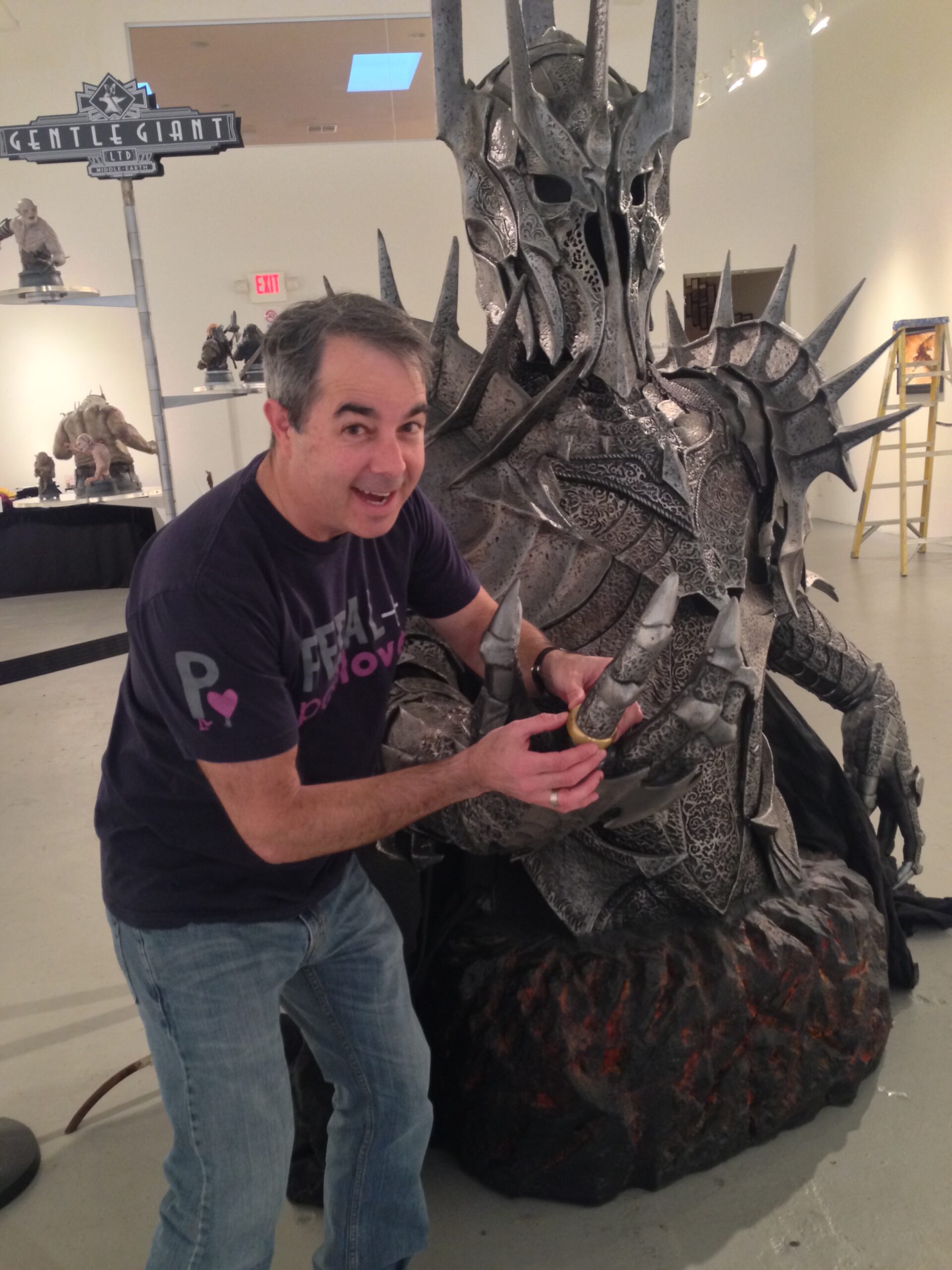
I try to be careful when posting images on social media. Good cropping makes a difference and including alt text is a must.
Cropwell is a Windows app I built to make this process easier.
Typically I would edit an image in Paint and use a script to get the alt text from an LLM. Several steps and several different windows to hop between.
Working with Claude, I made an app that can open common image formats and do a few basic tasks. The app can crop at 1:1, 9:16 or free size, resize the image, and generate alt text.
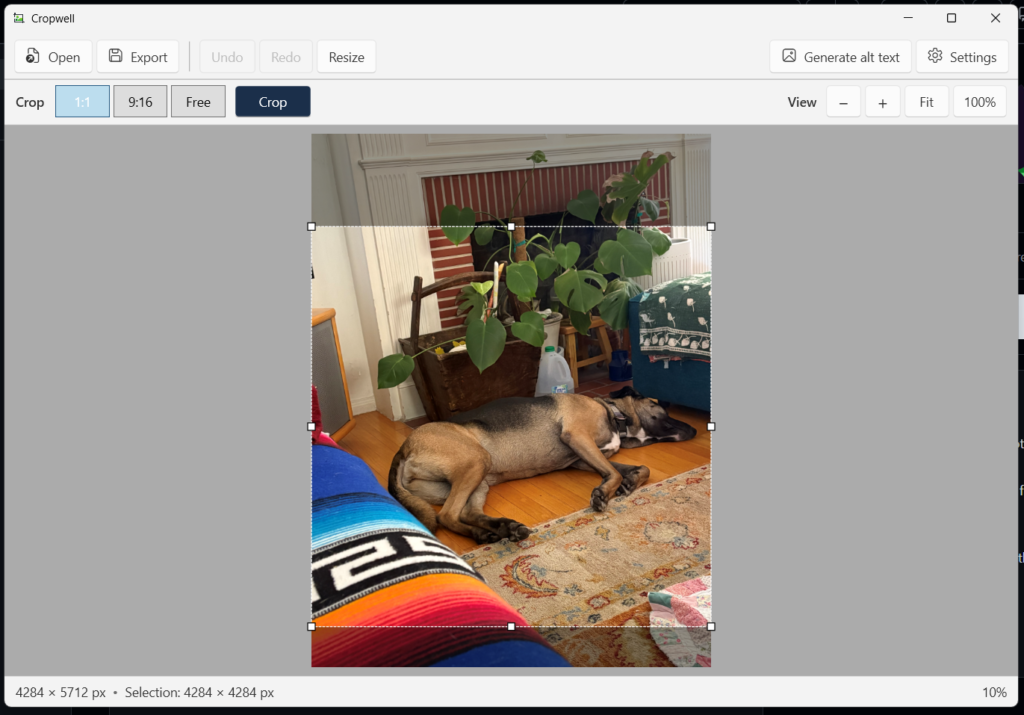
Upon export, any source metadata, including EXIF location data, is removed.
The alt text generation is based on an old script I used to allow me to right-click on an image to send a request to a Claude API. This is the script: image_alt_text .
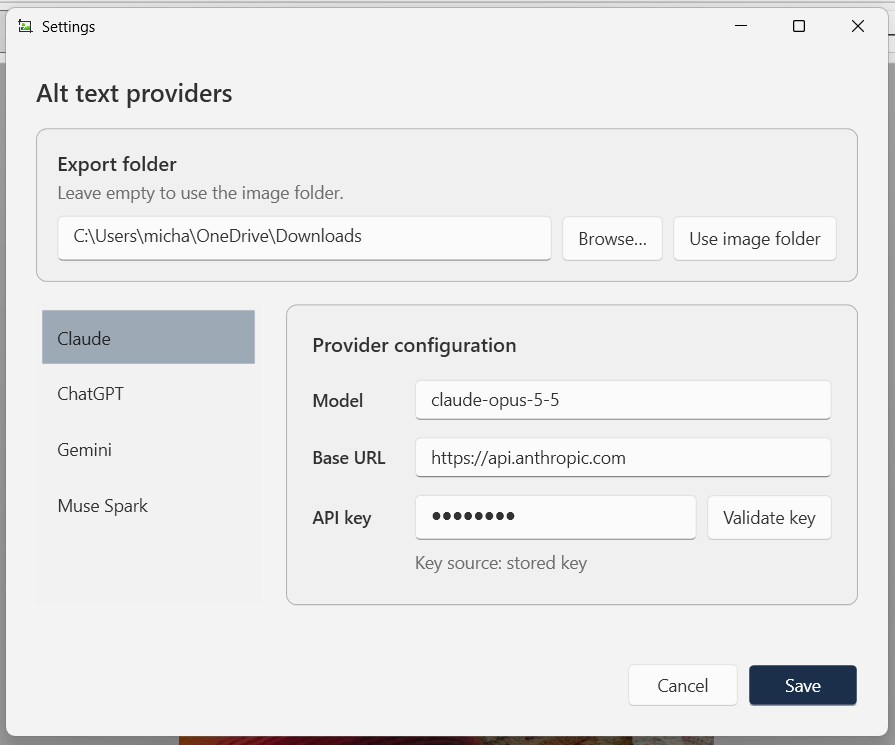
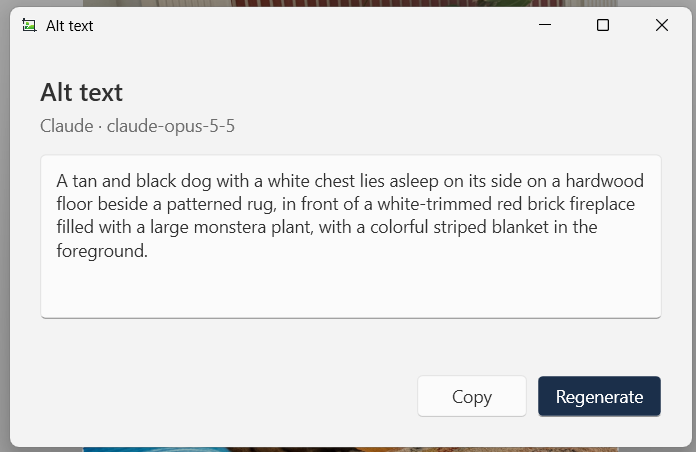
For Cropwell, I decided to open up the choice of provider. You can use Claude (Anthropic), ChatGPT (OpenAI), Gemini (Google) or Muse Spark (Meta). The API keys are stored in Windows Credential Manager, not in settings or logs. The alt text is based on the edited image, not the original. You can edit the alt text if you want before copying.
The app itself is a C# program, using the Windows Presentation Foundation (WPF) and .NET 10. It is a single self-contained .exe with no runtime to install. The .exe is unsigned, so Windows SmartScreen warns on first launch. If SmartScreen pops up a warning, click ‘More info‘, then ‘Run anyway‘. Getting a signed install costs ~$10/month, so it’s not worth it.
I configured the right-click menu to add an “Edit with Cropwell” option with a registry file. Beware, on Windows 11 it will only appear in the classic menu. If you want the classic menu by default, classic_context_menu.reg changes it for your Windows account.
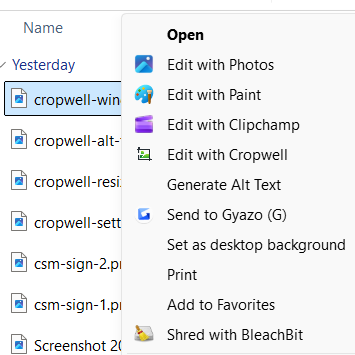
If you want to try it, be sure to configure the right-click to your system, as correct pathing matters. Edit the path in add_context_menu.reg to point to wherever you put Cropwell.exe.
Code is on GitHub at https://github.com/cruftbox/cropwell